
How to change your Password
Sign in to the CADian web service.
Click on the profile image in the upper right corner to access the My Page menu.
Navigate to the Sign In & Security page > Sign In Credentials section > Password field
Click the edit button at the far right of your Password.
When the Change password modal opens, enter the following:
Tip: Click the eye icon to unmark the password and check what you entered.
Current Password
New Password
※ The new password must meet all the following requirements:
At least 8 characters long
Includes at least one alphabet and one number
Includes at least one special character
Special characters exception: password must not include
#, %, &, +
Confirm New Password
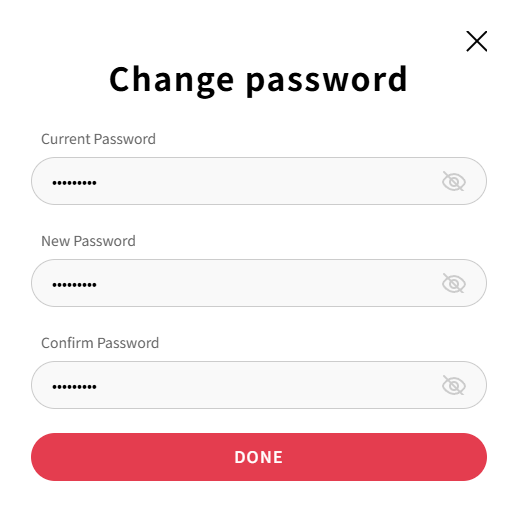
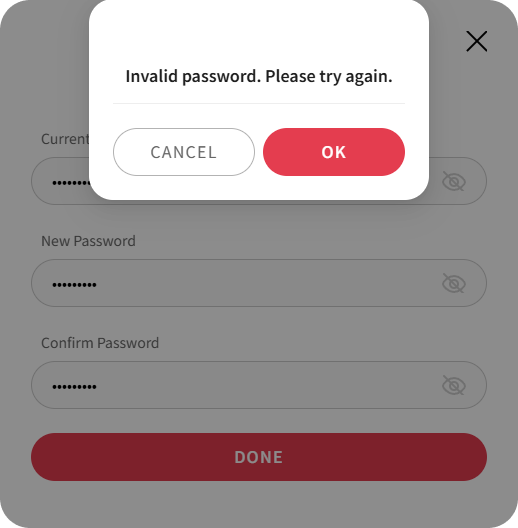
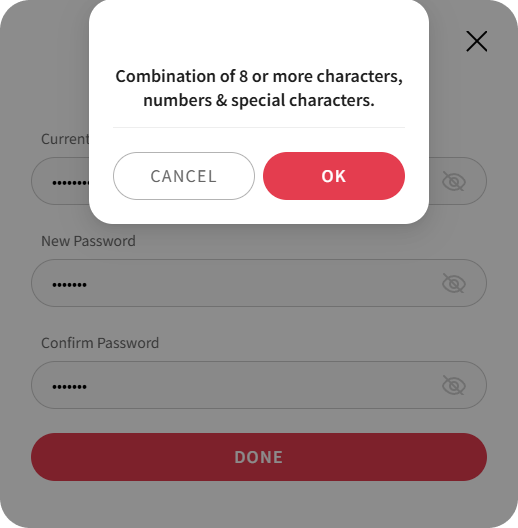
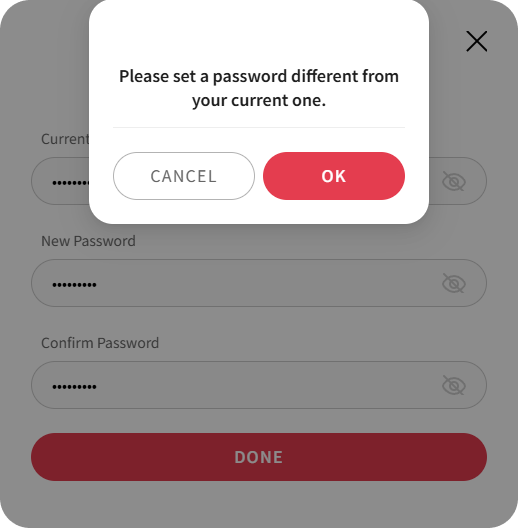
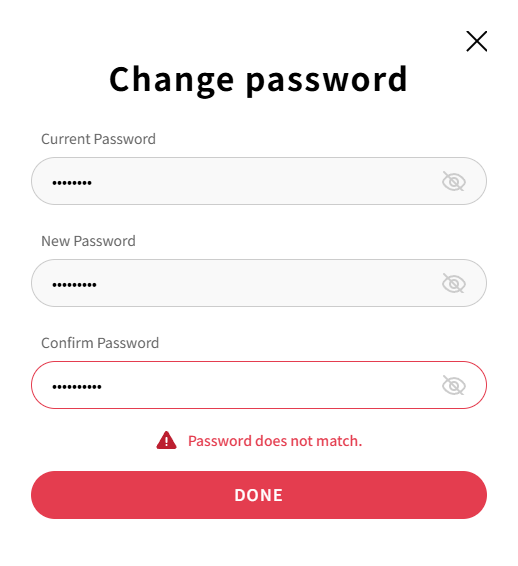
After entering abiding by the password rules, click the DONE button to change the password.
Note:
If you don't remember your password during login, you can reset your password.