CADianHelp Center
메뉴
  • CADian Release History
  • User Accounts
      • Sign Up (Create Account)
      • Sign In
      • 2-Step Sign In
      • Find Email Account
      • Find Password
      • Change Email Account
      • Change Password
      • 2-Step Verification
      • Delete Account
      • Restore Account
      • Login with ID
      • Find ID
      • Find Password
      • Find Email Address
      • Switch to Email
  • My Page
      • Change Email Account
      • Change Password
      • 2-Step Verification
      • Delete Account
      • Restore Account
      • Profile Image
      • Nickname
      • Name
      • Birthday
      • User Phone
      • Recovery Email
      • Industry
      • Company
      • Department
      • Change Language
      • Newsletter Subscription
      • Order History
      • Cart
      • Register Product
      • My Products
      • List
      • Register
  • License
    • Download CADian
    • Install CADian
    • Register License
    • Authorize Trial
  • File Manager
    • What's New
    • FAQ
      • Access
      • Browsers
      • Languages
      • Create Account
      • Sign In
      • Profile Settings
      • Create Folders
      • Upload Files
      • Download Files
      • File List
      • Open Files
      • Rename Items
      • Copy Files
      • Move Files
      • Delete Items
      • Share Items
      • Starred Items
      • Trash
      • Search
      • Storage
  • Web Viewer
    • What's New
    • FAQ
      • Access
      • Browsers
      • Languages
      • Create Account
      • Sign In
      • Profile Settings
      • Zoom and Pan
      • 3D Orbit
      • Switching Views
      • Selecting Entities
      • Properties
      • Layers
      • Model and Layout
      • Ruler
      • Text
      • Display and Hide UI
  • File Converter
    • What's New
    • FAQ
      • Create Account
      • Sign In
      • Profile Settings
      • Access
      • Browsers
      • Languages
      • File Types
      • File Upload
      • File Convert
  • Organization Console
    • Introduction
      • Create Organization
      • Organization Dashboard
      • View Members
      • Invite Member
      • Change Role & Remove
      • Transfer Ownership
      • View Groups
      • Create Group
      • Edit & Delete Group
      • View Serials
      • Register Serial
      • Remove Serial
      • Organization Info & Domain
      • Delete Organization
      • Activity Log
      • Member View Guide
      • Organization FAQ
  1. Help Center
  2. My Page
  3. user
  4. Profile Image
Profile Image

When you log in to the CADian web service, your profile image will be displayed in the upper-right corner.

Default: Avatar icon default avatar

How to change your Profile Image

  1. Sign in to the CADian web service.

  2. Click on the profile image in the upper right corner to access the My Page menu.

  3. Navigate to the Account page > Profile section > Image field

  4. Click on the profile image.

  5. In the profile image modal window, hover your mouse over the image area, and a camera icon will appear.
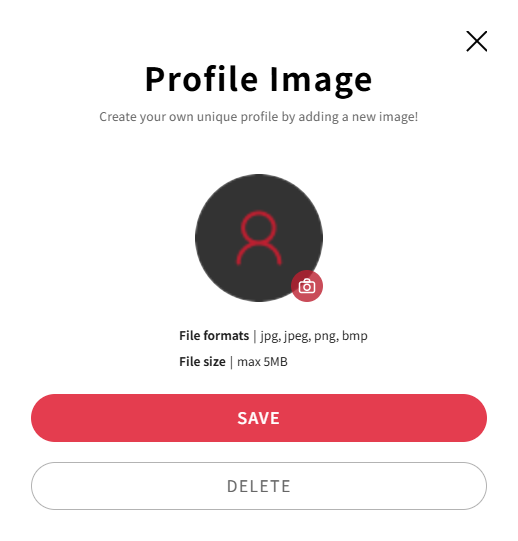
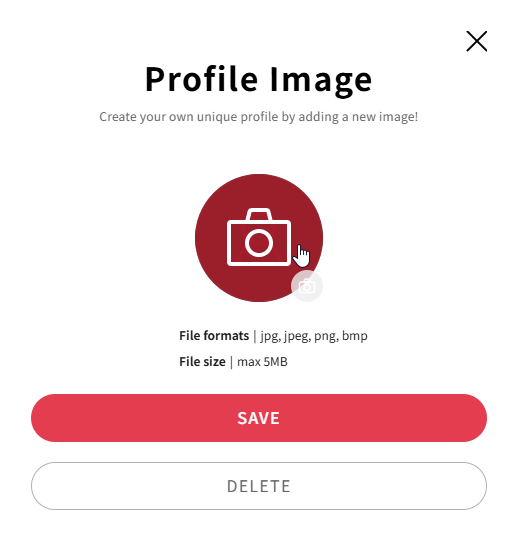
    Profile image settings modal

    Profile image settings modal select image

  6. Click on the camera icon and select a new image.

    • Supported formats: jpg, jpeg, png, bmp (Other file formats are not supported)

    • Supported file size: Files up to 5MB maximum

  7. You can edit the image by cropping or rotating it.
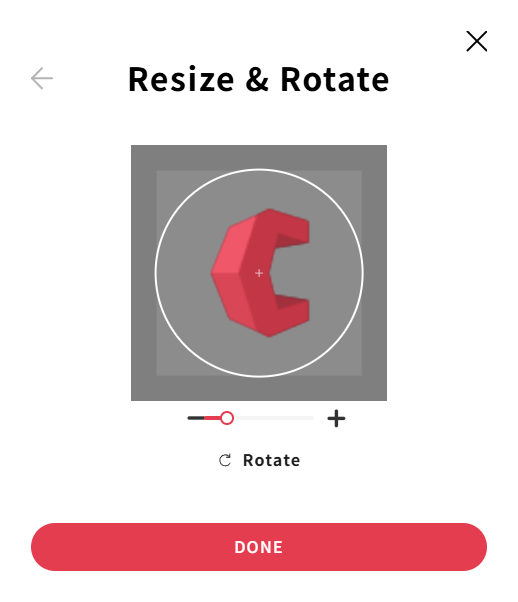
    Profile image settings modal edit image

    • Position: Click and drag the white border circle on the preview image to adjust the position.

    • Resize: Click and drag the small circle on the slider to zoom in or out.

    • Rotate: Click the Rotate button which will rotate the image by 45 degrees clockwise.

    • Select a new image: Click the back arrow to return to the previous page where you can select a new image.

  8. When you have completed editing the image, click the DONE button and then click the SAVE button to update your profile image.
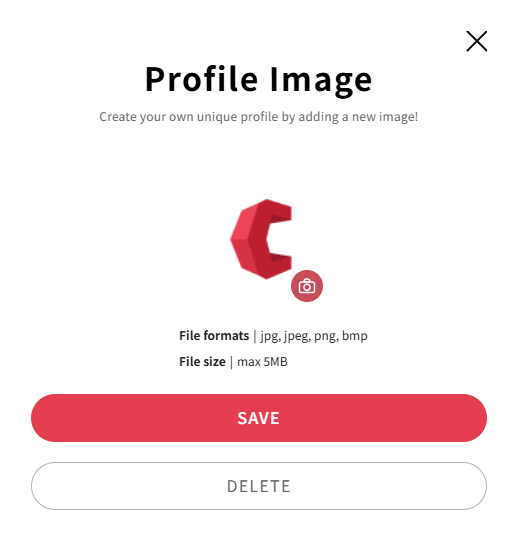
    Profile image settings modal save or delete

How to reset to the default Profile Image

  1. If you want to reset to the default profile image, click on the profile image from Account page > Profile section > Image field.

  2. In the profile image modal window, click the DELETE button.

  3. Your profile image is reset to the default avatar icon.

NextNickname
Copyrightⓒ Wizcore, Inc. All Rights Reserved.
Terms of ServicePrivacy Policy

Profile Image

  • How to change your Profile Image
  • How to reset to the default Profile Image
메뉴
  • CADian Release History
  • User Accounts
      • Sign Up (Create Account)
      • Sign In
      • 2-Step Sign In
      • Find Email Account
      • Find Password
      • Change Email Account
      • Change Password
      • 2-Step Verification
      • Delete Account
      • Restore Account
      • Login with ID
      • Find ID
      • Find Password
      • Find Email Address
      • Switch to Email
  • My Page
      • Change Email Account
      • Change Password
      • 2-Step Verification
      • Delete Account
      • Restore Account
      • Profile Image
      • Nickname
      • Name
      • Birthday
      • User Phone
      • Recovery Email
      • Industry
      • Company
      • Department
      • Change Language
      • Newsletter Subscription
      • Order History
      • Cart
      • Register Product
      • My Products
      • List
      • Register
  • License
    • Download CADian
    • Install CADian
    • Register License
    • Authorize Trial
  • File Manager
    • What's New
    • FAQ
      • Access
      • Browsers
      • Languages
      • Create Account
      • Sign In
      • Profile Settings
      • Create Folders
      • Upload Files
      • Download Files
      • File List
      • Open Files
      • Rename Items
      • Copy Files
      • Move Files
      • Delete Items
      • Share Items
      • Starred Items
      • Trash
      • Search
      • Storage
  • Web Viewer
    • What's New
    • FAQ
      • Access
      • Browsers
      • Languages
      • Create Account
      • Sign In
      • Profile Settings
      • Zoom and Pan
      • 3D Orbit
      • Switching Views
      • Selecting Entities
      • Properties
      • Layers
      • Model and Layout
      • Ruler
      • Text
      • Display and Hide UI
  • File Converter
    • What's New
    • FAQ
      • Create Account
      • Sign In
      • Profile Settings
      • Access
      • Browsers
      • Languages
      • File Types
      • File Upload
      • File Convert
  • Organization Console
    • Introduction
      • Create Organization
      • Organization Dashboard
      • View Members
      • Invite Member
      • Change Role & Remove
      • Transfer Ownership
      • View Groups
      • Create Group
      • Edit & Delete Group
      • View Serials
      • Register Serial
      • Remove Serial
      • Organization Info & Domain
      • Delete Organization
      • Activity Log
      • Member View Guide
      • Organization FAQ