CADianHelp Center
메뉴
  • CADian Release History
  • User Accounts
      • Sign Up (Create Account)
      • Sign In
      • 2-Step Sign In
      • Find Email Account
      • Find Password
      • Change Email Account
      • Change Password
      • 2-Step Verification
      • Delete Account
      • Restore Account
      • Login with ID
      • Find ID
      • Find Password
      • Find Email Address
      • Switch to Email
  • My Page
      • Change Email Account
      • Change Password
      • 2-Step Verification
      • Delete Account
      • Restore Account
      • Profile Image
      • Nickname
      • Name
      • Birthday
      • User Phone
      • Recovery Email
      • Industry
      • Company
      • Department
      • Change Language
      • Newsletter Subscription
      • Order History
      • Cart
      • Register Product
      • My Products
      • List
      • Register
  • License
    • Download CADian
    • Install CADian
    • Register License
    • Authorize Trial
  • File Manager
    • What's New
    • FAQ
      • Access
      • Browsers
      • Languages
      • Create Account
      • Sign In
      • Profile Settings
      • Create Folders
      • Upload Files
      • Download Files
      • File List
      • Open Files
      • Rename Items
      • Copy Files
      • Move Files
      • Delete Items
      • Share Items
      • Starred Items
      • Trash
      • Search
      • Storage
  • Web Viewer
    • What's New
    • FAQ
      • Access
      • Browsers
      • Languages
      • Create Account
      • Sign In
      • Profile Settings
      • Zoom and Pan
      • 3D Orbit
      • Switching Views
      • Selecting Entities
      • Properties
      • Layers
      • Model and Layout
      • Ruler
      • Text
      • Display and Hide UI
  • File Converter
    • What's New
    • FAQ
      • Create Account
      • Sign In
      • Profile Settings
      • Access
      • Browsers
      • Languages
      • File Types
      • File Upload
      • File Convert
  • Organization Console
    • Introduction
      • Create Organization
      • Organization Dashboard
      • View Members
      • Invite Member
      • Change Role & Remove
      • Transfer Ownership
      • View Groups
      • Create Group
      • Edit & Delete Group
      • View Serials
      • Register Serial
      • Remove Serial
      • Organization Info & Domain
      • Delete Organization
      • Activity Log
      • Member View Guide
      • Organization FAQ
  1. Help Center
  2. User Accounts
  3. email-accounts
  4. 2-Step Verification
2-Step Verification

2-Step Verification is an optional field.
We recommend enabling it to secure your account, as it requests verification every time you log in.

How to register 2-Step Factor

  1. Sign in to the CADian web service.

  2. Click on the profile image in the upper right corner to access the My Page menu.

  3. Navigate to the Sign In & Security page > 2-Step Verification section > Enable 2-Step field

  4. Click the toggle button at the far right of the Enable 2-Step to activate it.

    • 2-Step disabled toggle: 2-Step Factor Disabled (Inactive)

    • 2-Step enabled toggle: 2-Step Factor Enabled (Active)

  5. Click the add button at the far right of the Register 2-Step Factors.

  6. When the 2-Step Verification modal opens, choose between Verify with email or Verify with phone options.
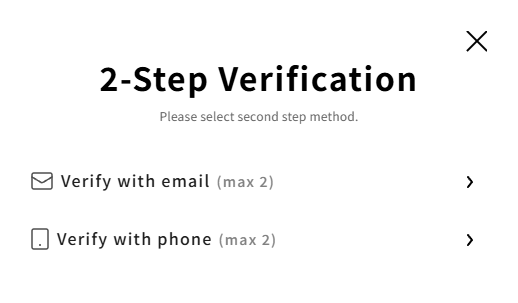
    Two-factor authentication method selection screen

① Verify with email

You can register up to 2 email addresses.

  1. 2-Step Factor Title: Enter a recognizable name for this 2FA.
    Example: Company email, Google email, etc.

  2. Email: Enter the email address where you can receive a verification code.

    ※ You can use the same email address as your Email Account or Recovery Email.
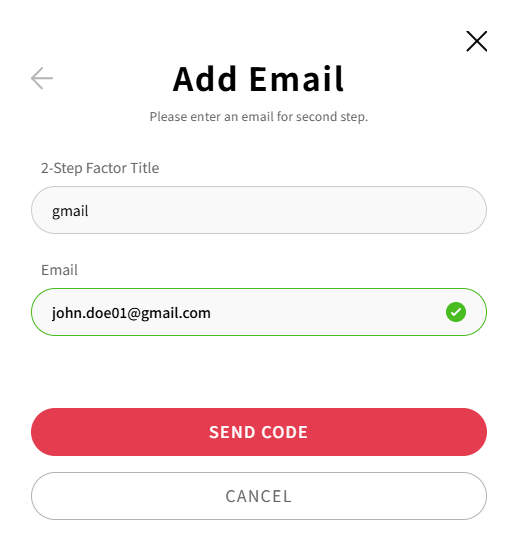
    Email authentication registration screen

  3. Click the SEND CODE button, and a 6-digit code will be sent to the entered email address.

  4. Enter the verification code received via email and click the CONFIRM button to register the email for 2-Step Factor.
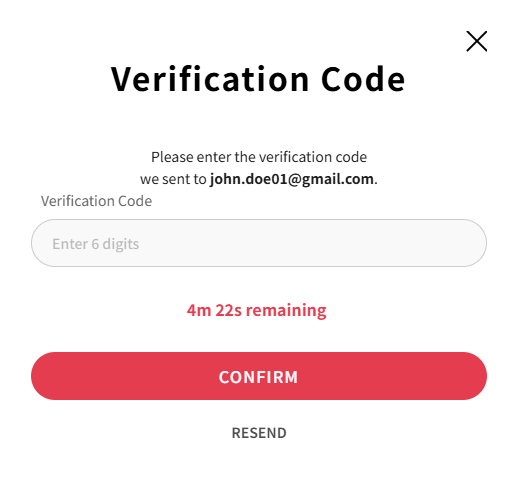
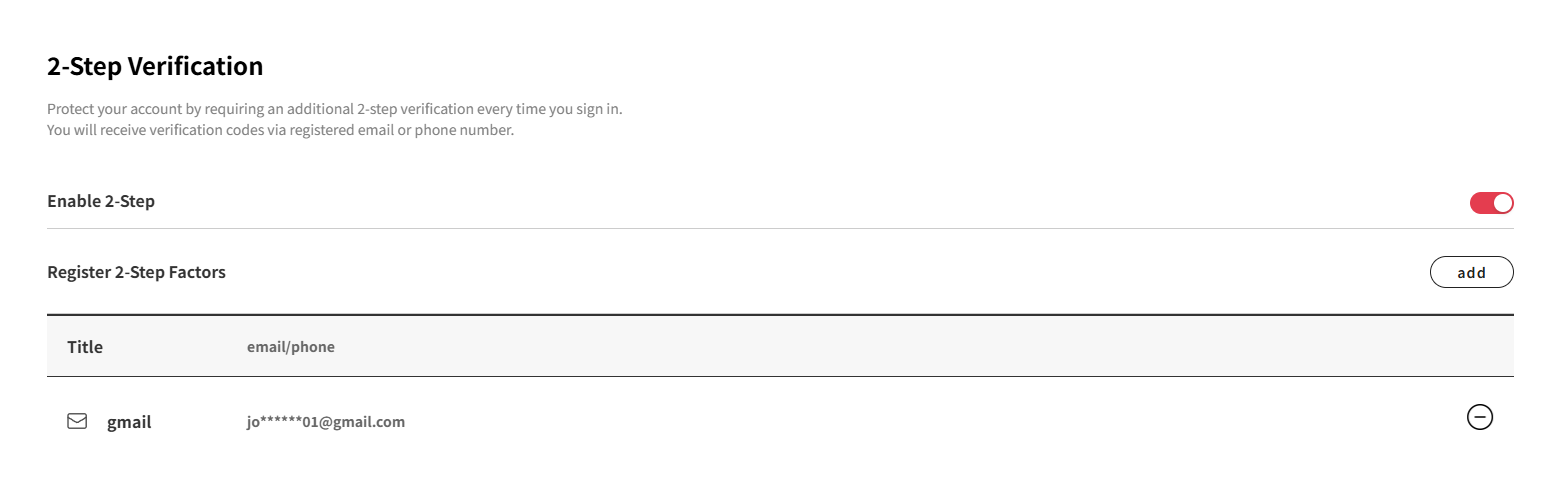
    Email verification code entry screen

    Email authentication registration completed screen

② Verify with phone

You can register up to 2 phone numbers.

  1. 2-Step Factor Title: Enter a recognizable name for this 2FA.
    Example: Mobile phone

  2. Phone Number: Select the country code and enter a phone number where you can receive a verification code (enter numbers only, without hyphens or spaces).

    (Country code list is sorted in alphabetical order by country name)
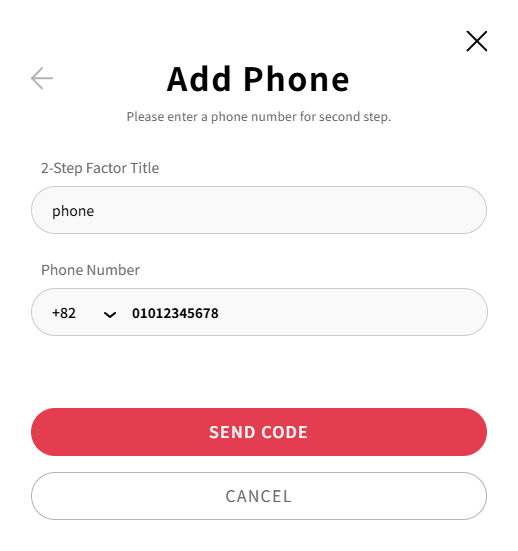
    Phone authentication registration screen

  3. Click the SEND CODE button, and a 6-digit code will be sent to the entered phone number.

  4. Enter the verification code received via SMS and click the CONFIRM button to register the phone number for 2-Step Factor.
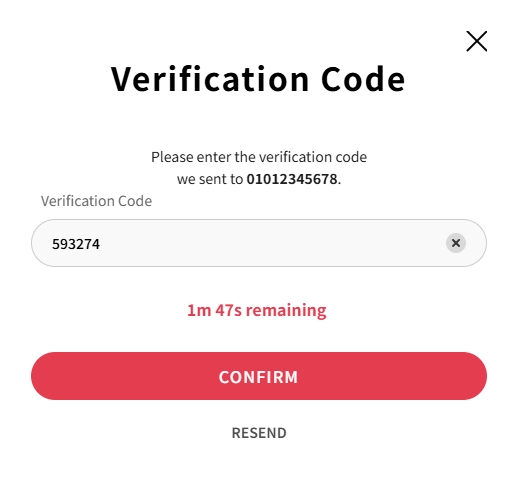
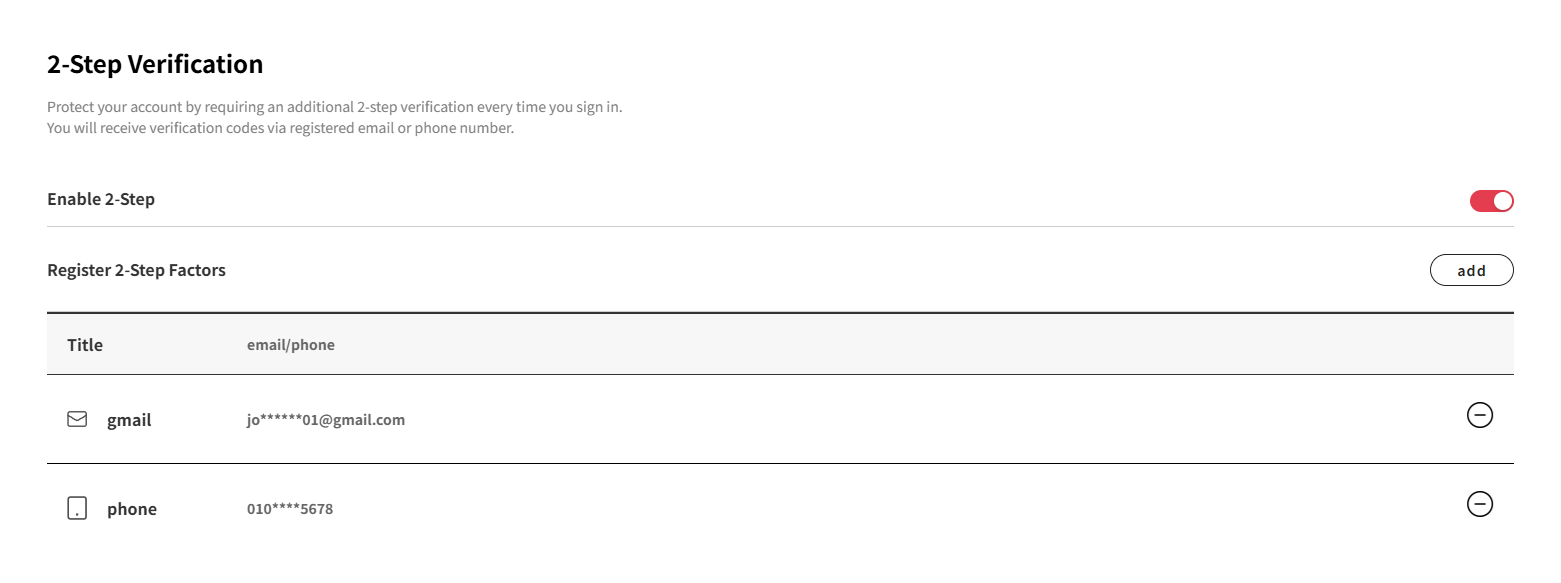
    Phone verification code entry screen

    Phone authentication registration completed screen

Failure Cases

  1. The verification code does not match.

    This error message is shown when you enter an incorrect verification code.
    Please double-check your email or SMS and enter the code correctly.

  2. The verification code has already expired.

    This error message is shown when you enter the verification code after the restricted time (Email: 5 minutes, SMS: 3 minutes).
    You can click the RESEND button to receive a new verification code.

How to change 2-Step Factor

To change an existing 2-Step Factor, you must delete it first and register a new one.

  1. Click the delete button at the far right of the registered factor.

  2. To delete a 2-Step Factor, you need to first verify it's you. Enter your password and click the OK button.

  3. If the password matches, the selected 2-Step Factor will be deleted.
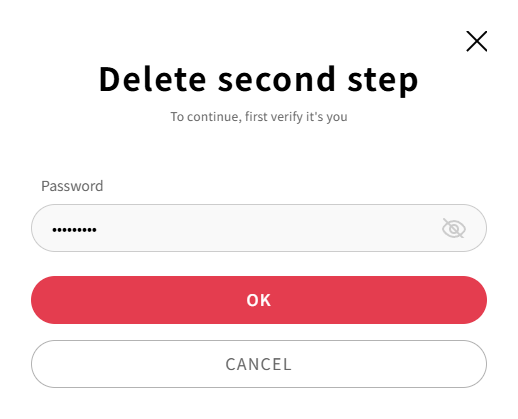
    Two-factor authentication removal confirmation screen

  4. If you wish to delete more factors, repeat the steps above.

  5. By simply turning off the toggle button 2-Step enabled toggle → 2-Step disabled toggle, you can skip the 2-Step Verification process while signing in, without having to delete the registered factors.

  6. When you enable the 2-Step again later 2-Step disabled toggle → 2-Step enabled toggle, previously registered 2-Step factors will remain, and you will be asked to verify with these factors when you sign in.
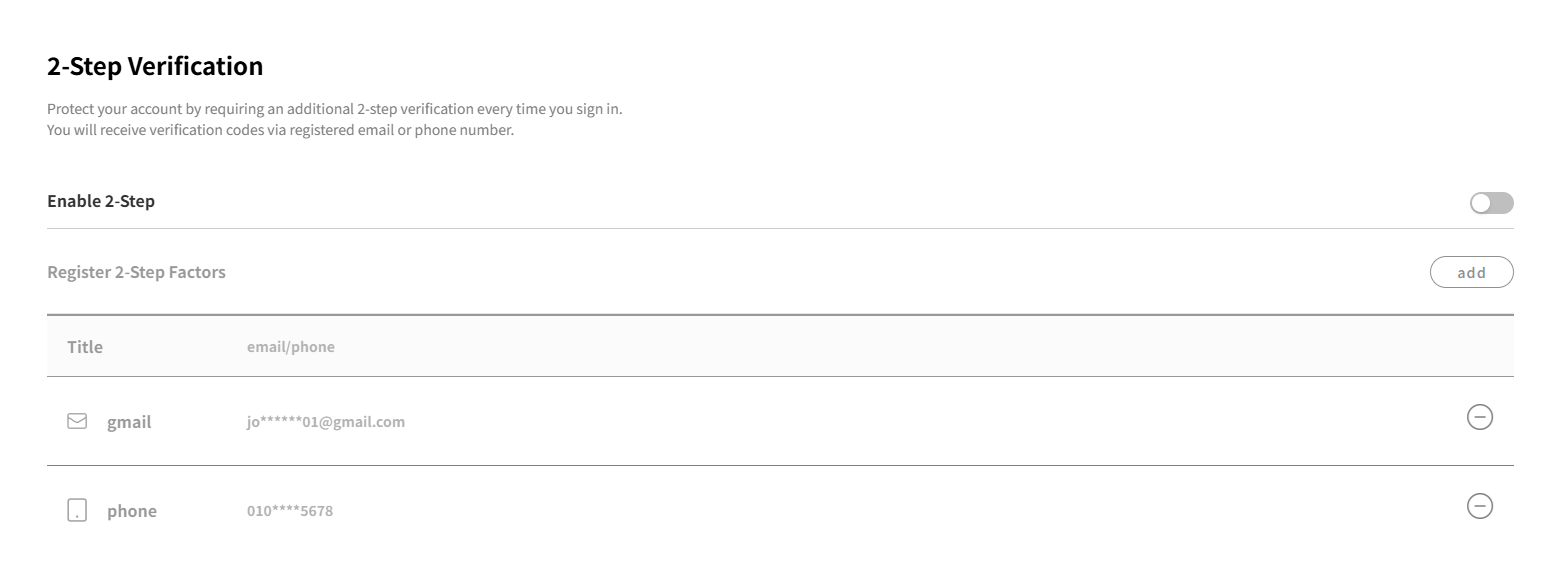
    Two-factor authentication deactivation completed screen

PreviousChange PasswordNextDelete Account
Copyrightⓒ Wizcore, Inc. All Rights Reserved.
Terms of ServicePrivacy Policy

2-Step Verification

  • ① Verify with email
  • ② Verify with phone
  • Failure Cases
  • How to change 2-Step Factor
메뉴
  • CADian Release History
  • User Accounts
      • Sign Up (Create Account)
      • Sign In
      • 2-Step Sign In
      • Find Email Account
      • Find Password
      • Change Email Account
      • Change Password
      • 2-Step Verification
      • Delete Account
      • Restore Account
      • Login with ID
      • Find ID
      • Find Password
      • Find Email Address
      • Switch to Email
  • My Page
      • Change Email Account
      • Change Password
      • 2-Step Verification
      • Delete Account
      • Restore Account
      • Profile Image
      • Nickname
      • Name
      • Birthday
      • User Phone
      • Recovery Email
      • Industry
      • Company
      • Department
      • Change Language
      • Newsletter Subscription
      • Order History
      • Cart
      • Register Product
      • My Products
      • List
      • Register
  • License
    • Download CADian
    • Install CADian
    • Register License
    • Authorize Trial
  • File Manager
    • What's New
    • FAQ
      • Access
      • Browsers
      • Languages
      • Create Account
      • Sign In
      • Profile Settings
      • Create Folders
      • Upload Files
      • Download Files
      • File List
      • Open Files
      • Rename Items
      • Copy Files
      • Move Files
      • Delete Items
      • Share Items
      • Starred Items
      • Trash
      • Search
      • Storage
  • Web Viewer
    • What's New
    • FAQ
      • Access
      • Browsers
      • Languages
      • Create Account
      • Sign In
      • Profile Settings
      • Zoom and Pan
      • 3D Orbit
      • Switching Views
      • Selecting Entities
      • Properties
      • Layers
      • Model and Layout
      • Ruler
      • Text
      • Display and Hide UI
  • File Converter
    • What's New
    • FAQ
      • Create Account
      • Sign In
      • Profile Settings
      • Access
      • Browsers
      • Languages
      • File Types
      • File Upload
      • File Convert
  • Organization Console
    • Introduction
      • Create Organization
      • Organization Dashboard
      • View Members
      • Invite Member
      • Change Role & Remove
      • Transfer Ownership
      • View Groups
      • Create Group
      • Edit & Delete Group
      • View Serials
      • Register Serial
      • Remove Serial
      • Organization Info & Domain
      • Delete Organization
      • Activity Log
      • Member View Guide
      • Organization FAQ