
This is how to register a license for use in an offline environment.
Registration Method
Log in to the CADian web service.
Click on the profile image in the upper right corner to access the My Page menu.
Click License in the left menu to access the license list page.
Click the License Issue button.
Enter the following information on the license issue page:
Computer name: Enter the name of the computer where the license will be installed.
Product selection: Select the product to issue a license from the product list.
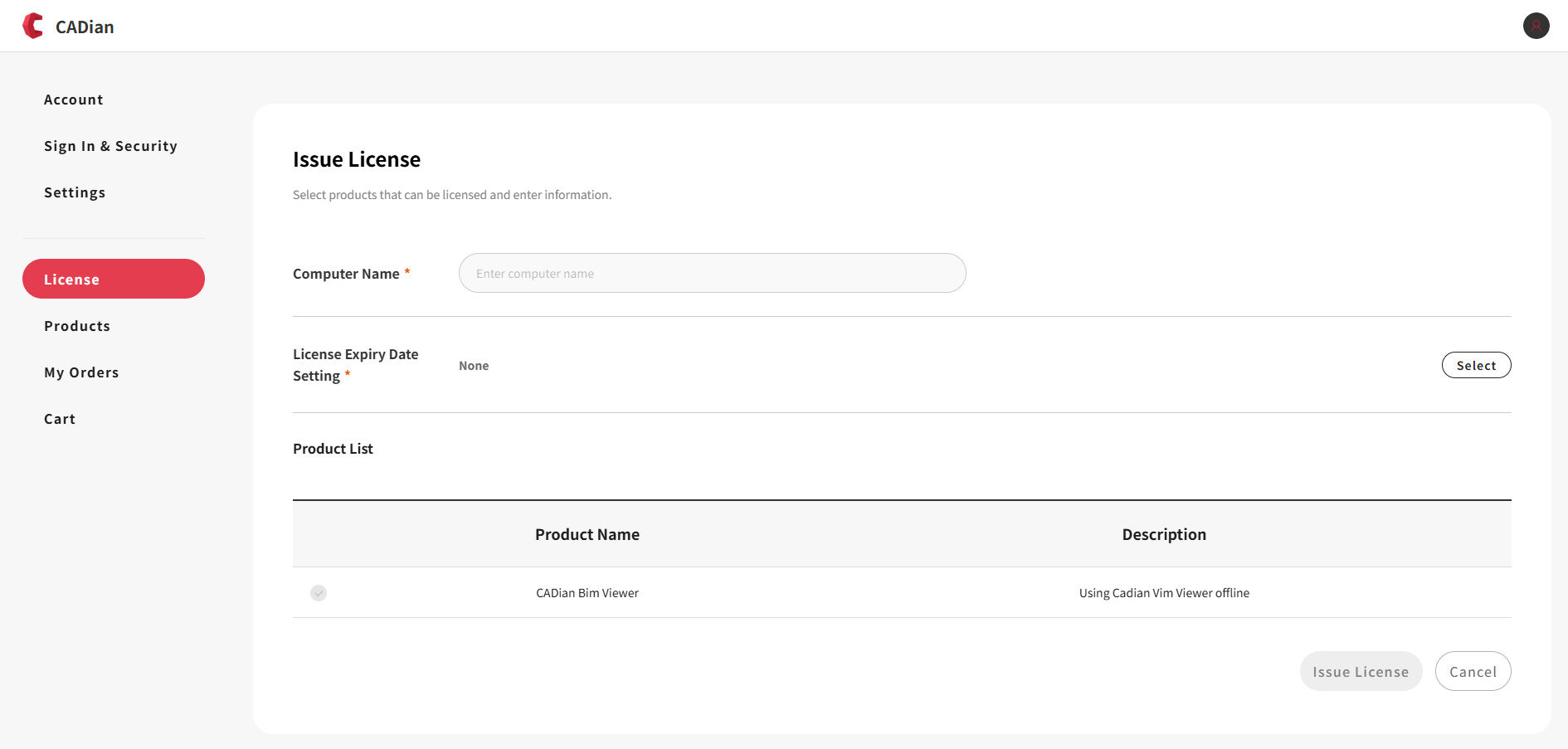
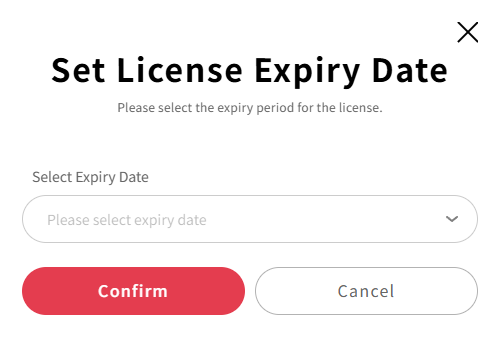
Click the select button in License Expiration Date Setting to open the expiration date selection modal.
Select the license expiration date in the modal:
1 month
3 months
6 months
1 year
Select the product you want to issue from the Product List and click the License Issue button to proceed with license issuance.
The issued license is sent to the currently logged-in email address and added to the license list.
You can use the license information received by email to use the product in an offline environment.
Supported Products
CADian Bim Viewer: BIM viewer product
Input Field Description
Computer Name
English, Korean, numbers, and special characters are allowed
Up to 50 characters can be entered
Product Selection
Select available products from the product list
Only purchased products or free products can be selected
Expiration Date
The license is valid for the selected period
Precautions
Licenses that have passed their expiration date cannot be used
Offline licenses can be used without an internet connection