
Invite a new member by email. Available to Owner · Admin only.
How to Invite
Click Invite Member at the top right of the Members screen to open the invite modal.
Enter an email address and click Add. (You can add several people at once.)
Choose a role.
Member : can view only their own serials
Admin : can manage members/serials
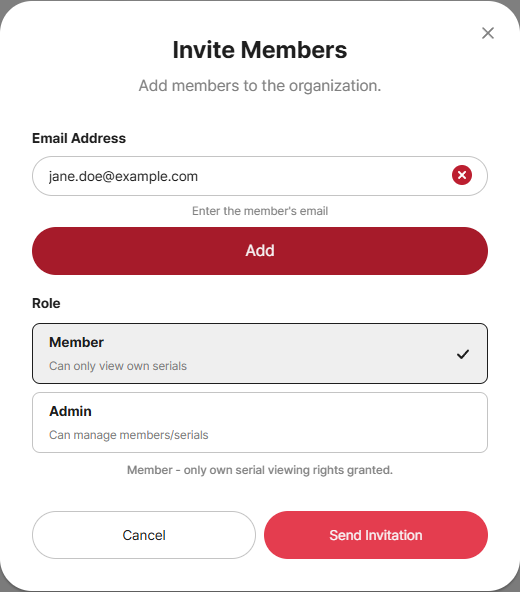
Click Send Invitation. The invitation is sent to the email.
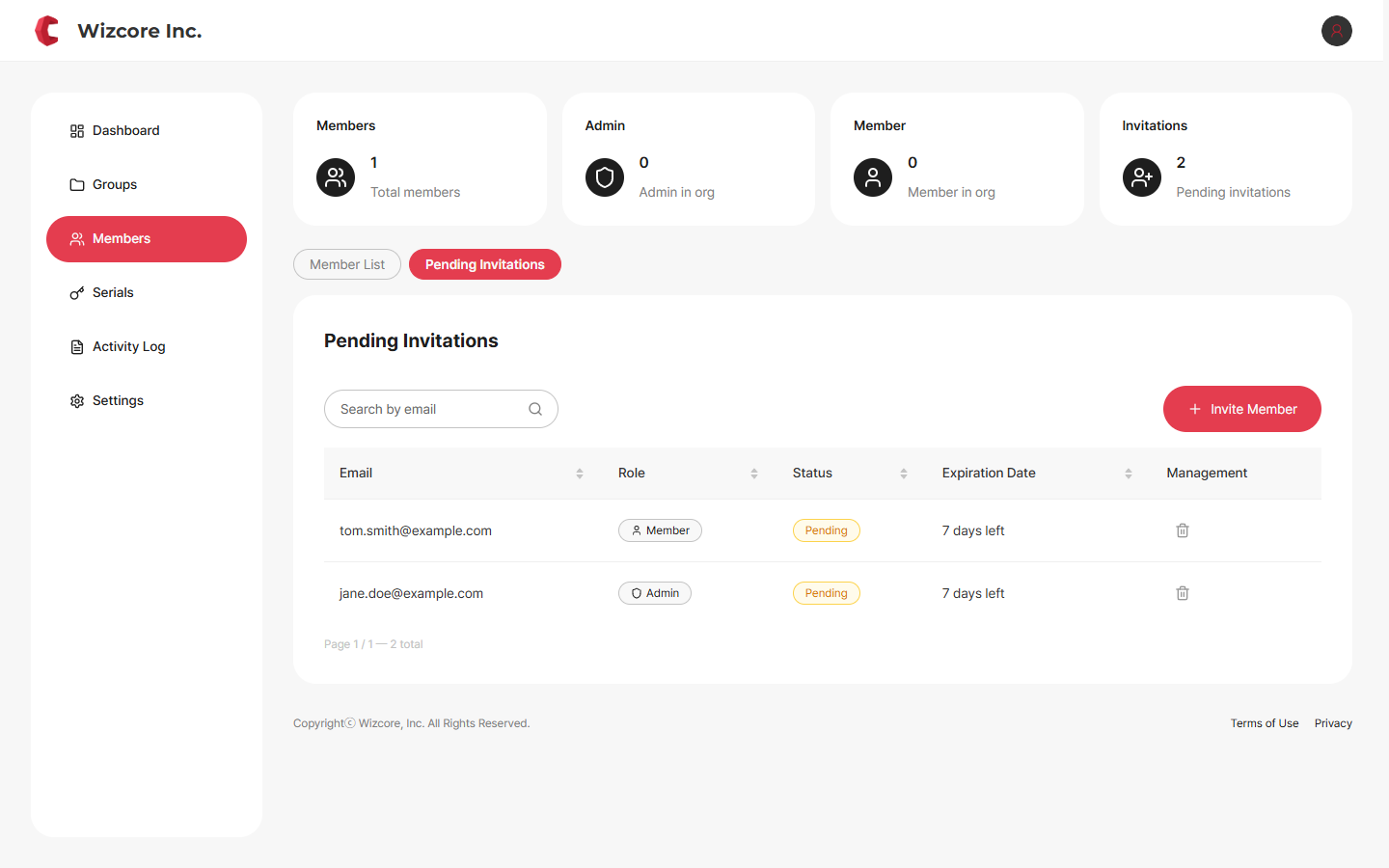
Checking Pending Invitations
Sent invitations appear in the Pending Invitations tab. It shows the email, role, status (Pending), and expiry (7 days after sending), and you can cancel an invitation with the trash icon in the Manage column.
How the Recipient Accepts
The recipient (invitee) joins the organization as follows.
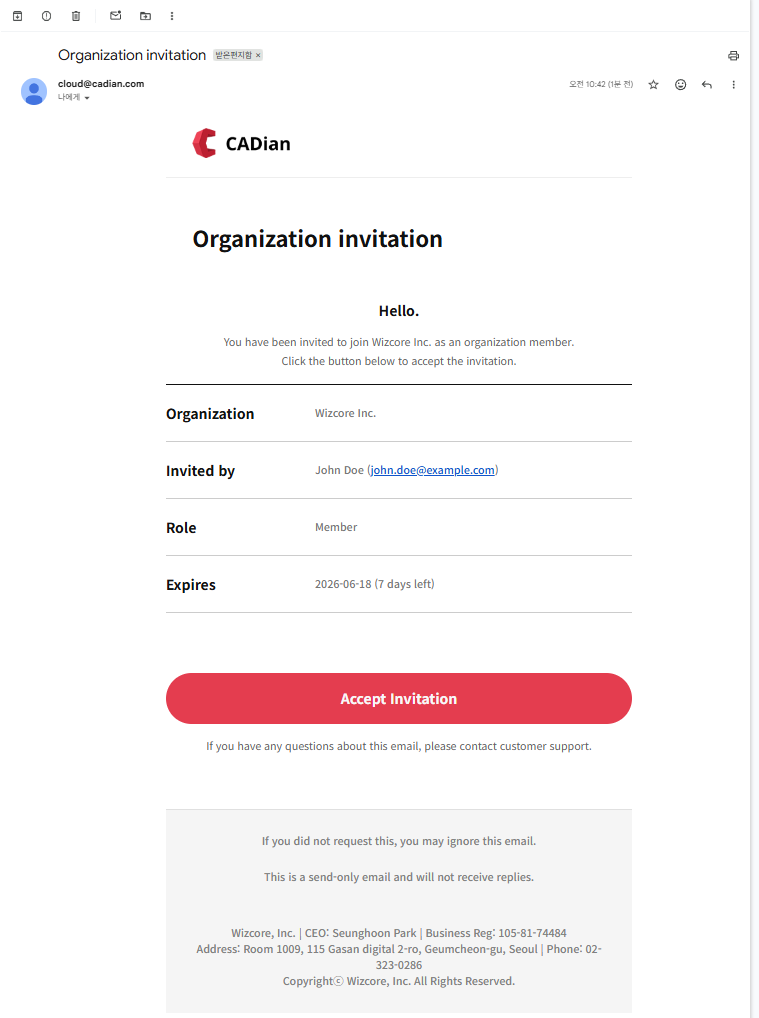
In the received Organization Invitation email, check the organization name, inviter, role, and expiry, then click Accept Invitation.
Sign in with the same CADian account as the invited email to proceed with acceptance.
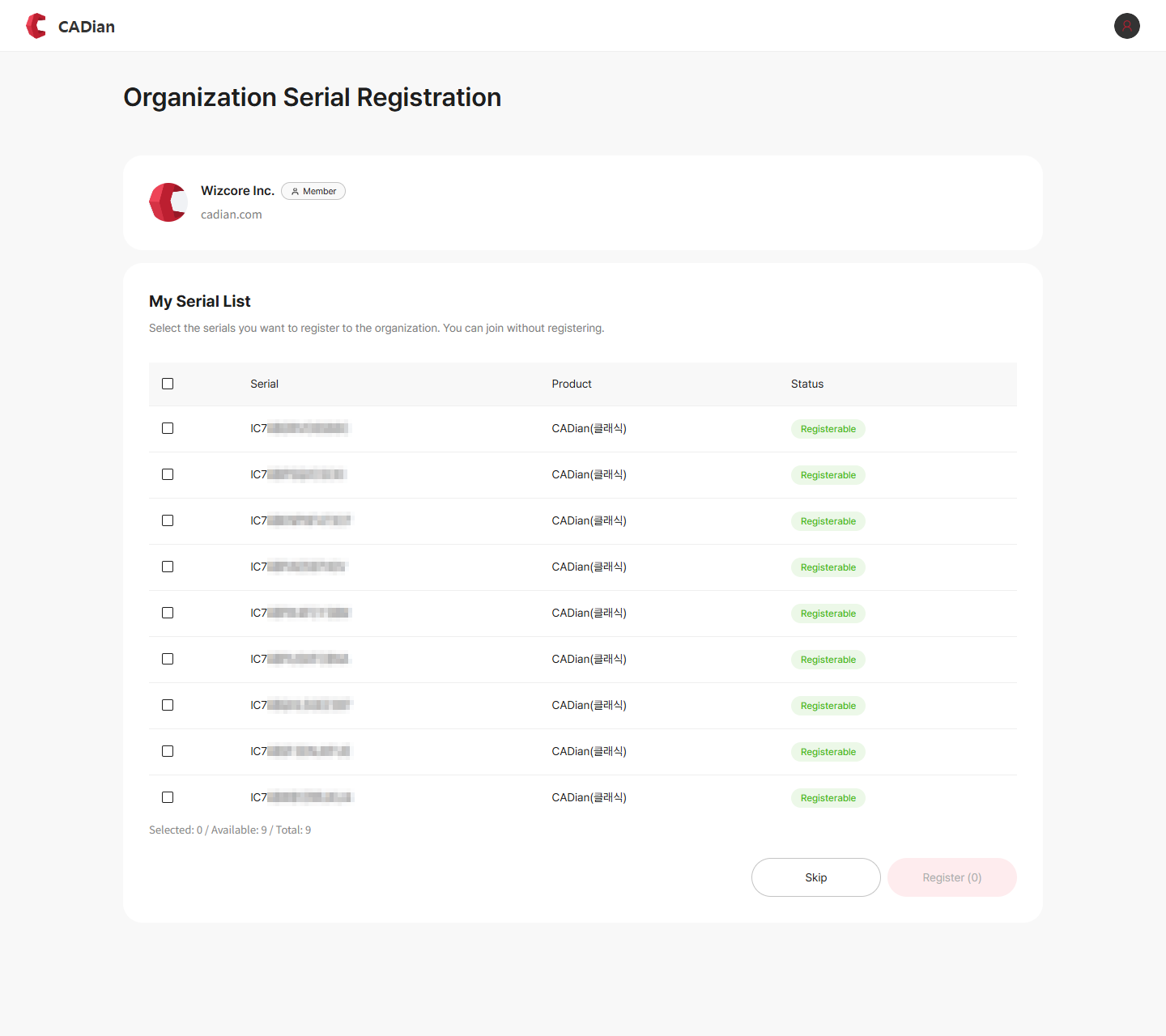
At the Organization Serial Registration step, select and register your serials, or Skip. (You can join the organization without registering.)
Once accepted, you enter the Organization Console as a member. → Member View Guide
Already signed in with a different account?
An invitation can only be accepted with the CADian account of the invited email address. If you are signed in with another account, sign out and sign back in with that account.
Related Topics