
A Member (general member) can browse the organization's status and view product serials they are using.
Change actions such as creating, inviting, and editing belong to administrators (Owner·Admin).
The Member view has 3 menus
When you enter as a Member, the left sidebar shows only Dashboard · Groups · Members (3 menus). The Serials · Activity Log · Settings menus are admin-only and do not appear. (Serials are shown only for yourself on the dashboard.)
1. Dashboard · My Serials
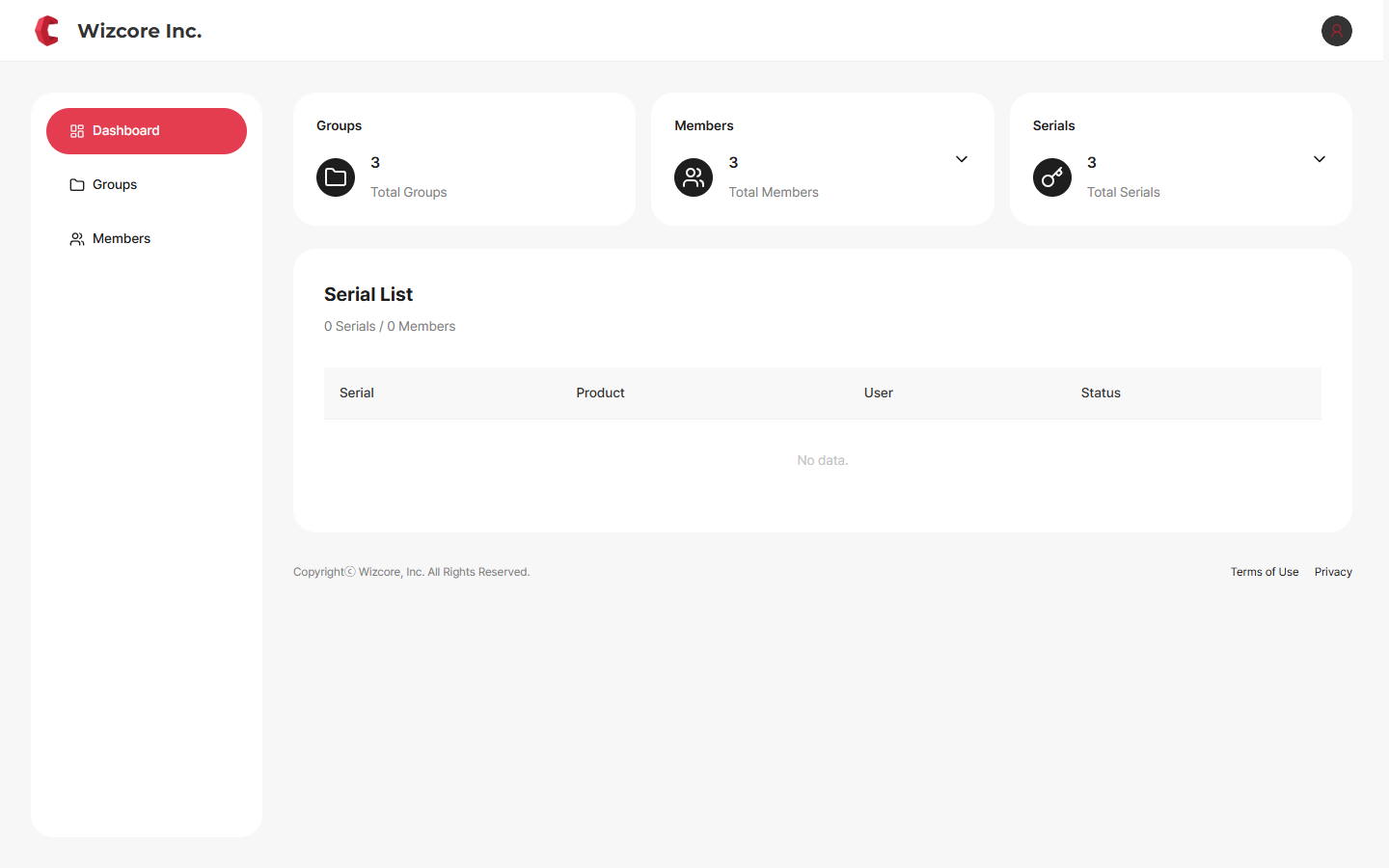
This is the first screen you see when you enter the organization. Along with the organization summary, you can view serials you are using.
Summary cards — Show the organization-wide counts of Groups · Members · Serials.
Serial list — Only serials you are using are shown at the bottom of the screen. If none are in use, it shows "No data."
If you need a serial
Members cannot register serials directly. For serial inquiries, contact the organization's Owner or Admin. Serials you are using appear in the serial list on the dashboard.
2. Viewing Groups (read-only)
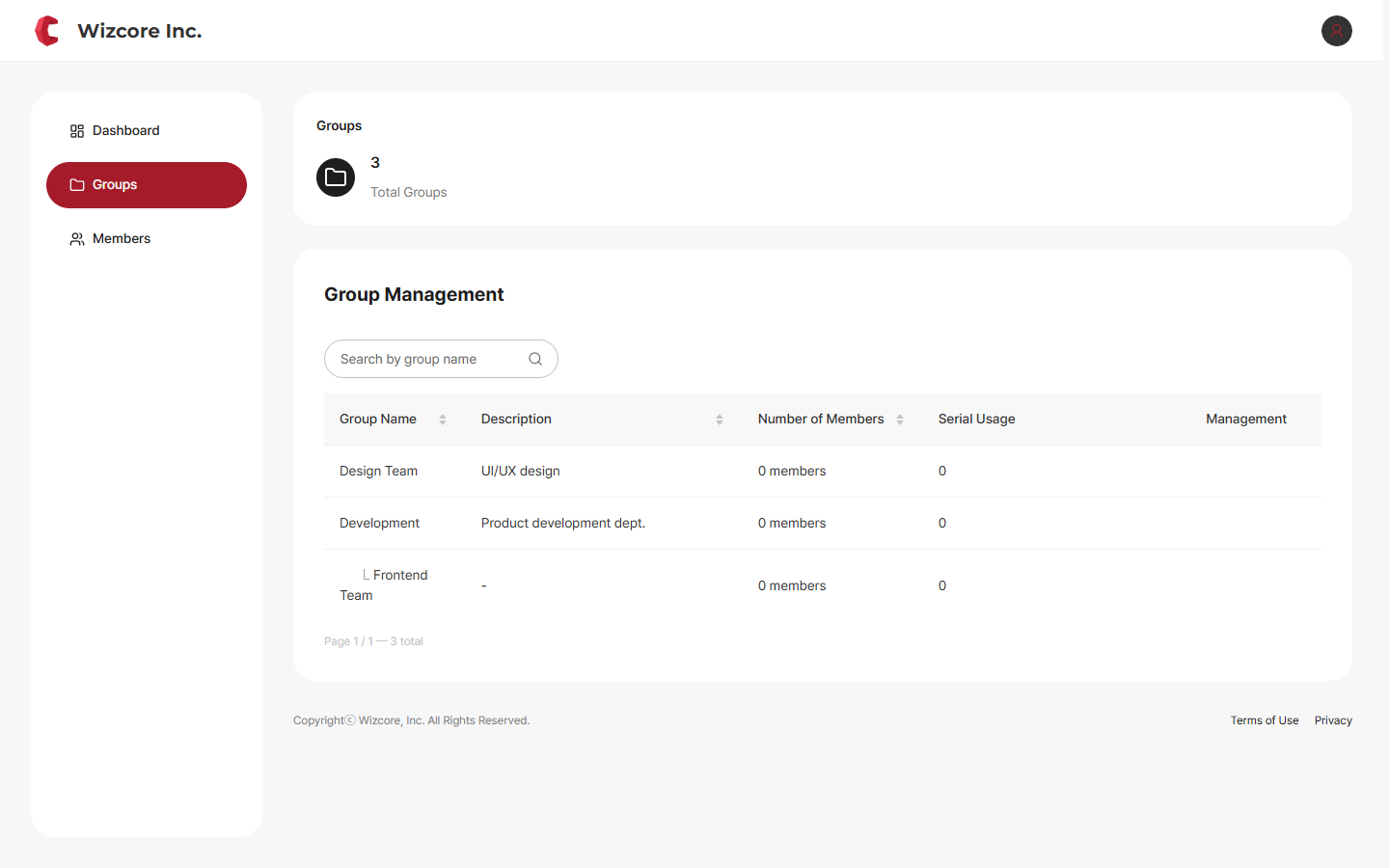
This screen shows the organization's department/team (group) structure. Click Groups in the sidebar.
Check group names, descriptions, member counts, etc., in the list, and use the top search box to find a group.
There is no "Create Group" button or edit/delete function. To create or change a group, ask an administrator.
3. Viewing Members (read-only)
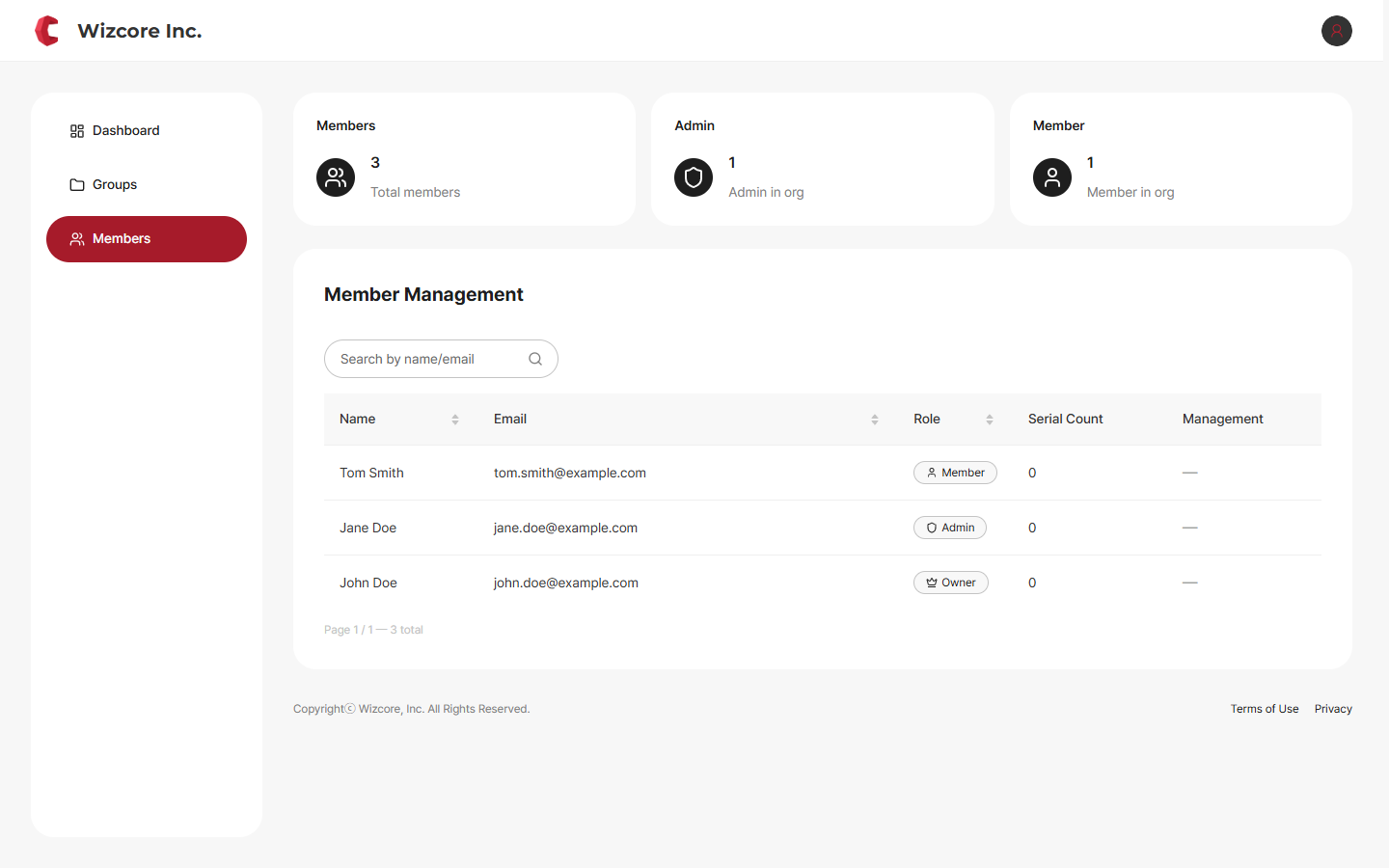
This screen shows the members you work with. Click Members in the sidebar.
Check members' names, emails, and roles in the list, and use the top search box to find a specific member.
There is no "Invite Member" button or role-change/removal function. If a new member needs to be invited, ask an administrator.
Related Topics